
Optimize Image Delivery to Events with the PhotoServe Client Portal
Save Your Time and Theirs
Contents
- Introduction
- Who Can Benefit from Our Client Portal?
- How to use it
- Client access
- Frequently Asked Questions
- Simplify Your Workflow and Delight Your Clients
Introduction
Do your contracts with events include the agreement to deliver a set number of images to them? If so, we have something that will save your time and theirs! With our self-serve Client Portal, your clients can easily access and download their images directly themselves, without needing to request them from you, saving you both time and effort.

Who Can Benefit from Our Client Portal?
Our Client Portal is a valuable tool for clients who have an agreement with an event to provide some or all of the images taken at the event, usually for their own marketing purposes.
How to use it
Create a Client
This will serve as your client’s login credential.
- Choose the “Clients” option from the PhotoServe console for your site
- The “Add Client” option will show a dialog for you to enter the new client information
- The email address you use MUST match the email address the client will use to sign in
- The client name you enter may be visible to the client (depending on how they sign in).
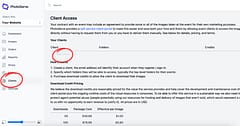

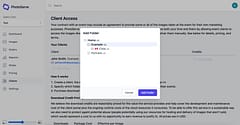
Share Folders:
Clients will only see and be able to browse and download from the folders you choose to share with them. This should typically be the top-level folders for their events.
- Choosing the event folder limits the clients access to only their event images, be careful you don’t give them access to high-level folders that would allow them to access images that are not theirs.
- You can add more than one folder, just remember whichever folders you add will include access to all the sub-folders below it (so you don’t need to give access per every child-folder).
Purchase Download Credits:
Credits control how many images a client is allowed to download from the ones you have shared, this should be enough to cover the number you have agreed to supply as per your contract with them. You, as the photographer, purchase these credits from PhotoServe and can factor them in to the fee you charge your client for the contract.

Download Credit Pricing:
We’ve designed our credit pricing to be cost-effective while still ensuring that the service is sustainable and covers the cost of development and ongoing resources needed to provide it. The current credit pricing is always shown on the client management page.
Client access
Once you have added a client, folder and credits you can have the client sign in to the Client Portal to access their images. Remind them that clicking on an image will download it and consume a credit They do not need to use all the credits at once, they can log back in and download images as long as that folder is available on your website.
Frequently Asked Questions
Do I have to purchase credits for each folder?
No, credits are not linked to specific folders. The folders determine what your clients can view, while the credits determine how many images they can download.
What happens if a client accidentally downloads images more than once?
Credits are only consumed for unique image downloads. Multiple downloads of the same image won’t waste credits.
Can clients use credits across different PhotoServe photographers?
No, credits are associated with each individual photographer’s site.
Do credits expire?
Counted credits do not expire. Unlimited credits are valid for 1 year but can be extended for additional years at the time of purchase.
Can credits be upgraded or transferred?
No, credits are typically purchased upfront based on anticipated usage and cannot be transferred between clients.
Can credits be refunded?
Refunds are only available for unused credits due to purchase errors. All other sales are final.
Simplify Your Workflow and Delight Your Clients
By utilizing the PhotoServe Client Portal, you can significantly reduce the administrative burden of image delivery. Your clients will appreciate the convenience and efficiency of accessing their images directly.