
How to Use Hidden Folders for Non-Public Events
Best Practices, Tips and Instructions on How to Use Hidden Folders
Contents
- Sell Images Through Hidden Folders for Non-Public Events
- What Are Hidden Folders Used For
- What Is a Hidden Folder
- Why Use a Hidden Folder
- How to Create a Hidden Folder
- Folder Names are the URL
- How to Confirm a Folder is Hidden
- How to Share Hidden Folders
- Starred Images in Hidden Folders
- How do Customer Purchase Images from Hidden Folders
- How to Move Images between Public and Hidden Folders
Sell Images Through Hidden Folders for Non-Public Events
PhotoServe provides a web platform for photographers to easily sell public digital images to customers. Our platform allows your customers to easily find their images within the folders you create. This works well for public events. However, what do you do if you are shooting non-public events such as family sessions or commercial use for one vendor? This is when you should use hidden folders.
If you haven’t created a public folder in PhotoServe, read this article first. It has details on how to organize folders, name them, edit, price, delete, etc. These principles are the same for creating hidden folders.
What Are Hidden Folders Used For
For non-public events that you do not want to appear on your public website. Hidden folders are an excellent way to expand your event photography business to private sessions.
What Is a Hidden Folder
Hidden folders are not listed on your public site and are marked to not be indexed by search engines to keep them hidden from view by default. Hidden folders are not auth-protected, meaning you don’t need any sign-in to access them, so they are not considered private or secure - instead anyone who has the link will be able to access them.
Why Use a Hidden Folder
To be able to sell non-public digital images to one client or organization. Hidden folders make it easy to share your folder with clients by sending the folder link via email. This provides flexibility to organizations and people that may want to share the link within their company or with family. Whoever has the link can access and purchase the images.
How to Create a Hidden Folder
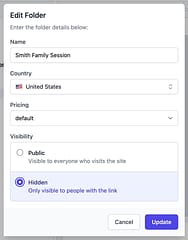
The hidden folders work the same way as PhotoServe’s public folders. You can create a parent folder with child folders within. When you create a folder there is an option to make it public or hidden.
Step 1: Click the create button:
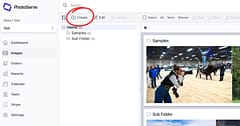
Step 2: Fill out prompts, choose if you want the folder public or hidden. Upload images as you would a public folder. You can edit, delete the same as public folders, if you require further details on editing or deleting folders visit How to Create, Edit, Manage Folders in PhotoServe.
Folder Names are the URL
The folder name of public and hidden folders becomes the URL. For example if you name a folder Smith Family Winter Session the url will be websitename.com/smith-family-winter-session. If you want to make a more complicated URL for hidden folders you can choose to add numbers or letters to the name. For example you could name a folder 963 Smith Family Winter Session and the url would be websitename.com/963-smith-family-winter-session. No one should guess that URL if for any reason someone would try. The first time you create a folder that is the URL name, you can change a folder name after but the URL will stay the same. For example you can name a folder x67wjkhfa88 then save, then edit that folder name to Smith Family Winter Session. The url would still be website.com/x67wjkhfa88, but the folder name would be Smith Family Winter Session.
How to Confirm a Folder is Hidden
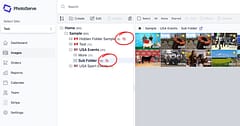
Hidden folders have a red “crossed out eye” icon in the folder tree and in the folder content panel to denote that they shouldn’t be visible on the site.
How to Share Hidden Folders
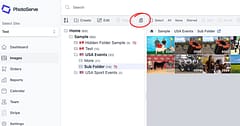
There is a “Copy URL” icon on the folder toolbar, clip the icon to copy the folder’s URL to the clipboard and paste in email for customer.
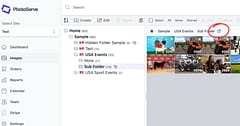
You can also copy the URL by clicking the expand folder icon to open it in another window then copy the URL from there.
Starred Images in Hidden Folders
The starred images in hidden folders, the images summarize that folder and represent the 12 best, won’t appear in parent folders. All images in hidden folders will not appear elsewhere on your website. For more information on starred images visit How to Create, Edit, Manage Folders in PhotoServe.
How do Customer Purchase Images from Hidden Folders
Customers can purchase as few or as many images as they choose, the same way as they can with public folders. If the price tier applied to the folder is discountable, they will receive discounts.
We are looking at adding an option for per-folder pricing, where you can set a single price to purchase a complete set of images.
How to Move Images between Public and Hidden Folders
Did you accidentally upload images to a public folder? Do NOT delete them, move them to the hidden folder you want them in.
Instructions on How To Move Images to a Different Folder
- Click the Folder containing the images you want to move
- Click > Select on the Image Management panel
- Select ALL or Individually Click the images you want to move
- Click > Move and select the Folder you want to move them too