
How to Add, Change and Remove Pricing in PhotoServe
Easily Update Prices Across Your Site
Contents
Introduction
By the end of this post you will understand how to create, change and delete pricing tiers as well as understand how the pricing system works within your folders.

If you aren’t familiar with how PhotoServe folders work read - How to Create, Edit and Manage Folders in PhotoServe.
Before we jump into the steps on how to manage pricing tiers let’s touch base on how the pricing system works.
Pricing System
Price tiers allow you to define the prices you charge for categories of images. Each folder must be assigned a tier when created which then makes it easy to update prices across your site. This means each folder can only contain images with the same price within it. You may want to have different price tiers to reflect the different value of images to your customers or to account for differing costs to you. Pricing is always a balance between what people are willing to pay vs what you want to charge.
You will typically define prices in your local currency so customers will know exactly what they will be charged. But if you have customers in multiple countries it can often be beneficial to define the local prices directly rather than relying on currency conversions which may also incur extra charges for them as a ‘foreign transaction’ to their card issuer. It also allows you to vary prices to reflect local market conditions and price expectations. If multiple currencies are defined, the store will default to whichever one matches their location, falling back to the default currency. Customers can also select the currency to use in the store.
Your default currency (indicated with the selected “dot” above it) should typically match that of the bank account that will receive payments from Stripe so as to avoid paying any currency conversion fees. If you have multiple bank accounts in different currencies, Stripe will deposit any payments into whichever matches the currency that charge was made in. Any payments in other currencies will be converted to your default currency.
If a price tier is set to be discountable the store checkout will apply an escalating discount designed to encourage customers to buy additional items, increasing overall average order size. Each discountable image they add to their order provides an additional 10% discount off the next, all the way up to 50% per image. The cart is always in descending price order, so people cannot “cheat the system” by adding cheaper images to get a bigger discount off more expensive ones.
Instructions for Adding, Changing and Removing Price Tiers
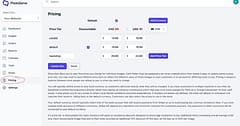
Go to Pricing in Console
Adding Price Tiers
Every store starts with a single “default” price tier, and it may be the only one you ever need (simple is always good). We suggest thinking carefully whether any additional price tier is really necessary and a good rule of thumb to follow is how easy it is to explain and justify to any customer who asks. To add a new tier you give it a name, choose whether it should be discountable, define the price for each supported currency, and click “Add Price Tier”.
Changing Price Tiers
The discountable flag and currency prices for existing price tiers can be changed as desired. Deleting Price Tiers It isn’t currently possible to delete pricing tiers through the console but we hope to add this capability soon.
Adding Currencies
If you decide that defining prices in multiple currencies would be beneficial you can select the additional currency from the drop-down list and click “Add Currency”.
Set Default Currency
The radio buttons above each currency column determine which currency is the default. Only once can be selected, and one must be selected.
Deleting Currencies
If you decide you no longer wish to use a currency, click the trash-can icon next to the currency code on the column heading to remove it. If it was the default currency (a strange one to remove) the next currency will be set as the new default.
Save and Apply Price Changes
None of the changes you make are applied until you click “Update Site” which will make them live. This gives you a chance to make multiple changes, double check they are what you want, and apply them in one go.
Pressing the “Reset” button will undo the changes you have made.
If you are looking for further information about Stripe or how to price for event photography check out our blog for more resources. We are rooting for you!